Copy text.
Hear it speak.
On-device text-to-speech powered by AI, built right into KeyVox. Copy or share text, and hear it speak with up to 8 on-device AI voices. Private, fast, and available right from your iPhone. No subscription.
Download on iOS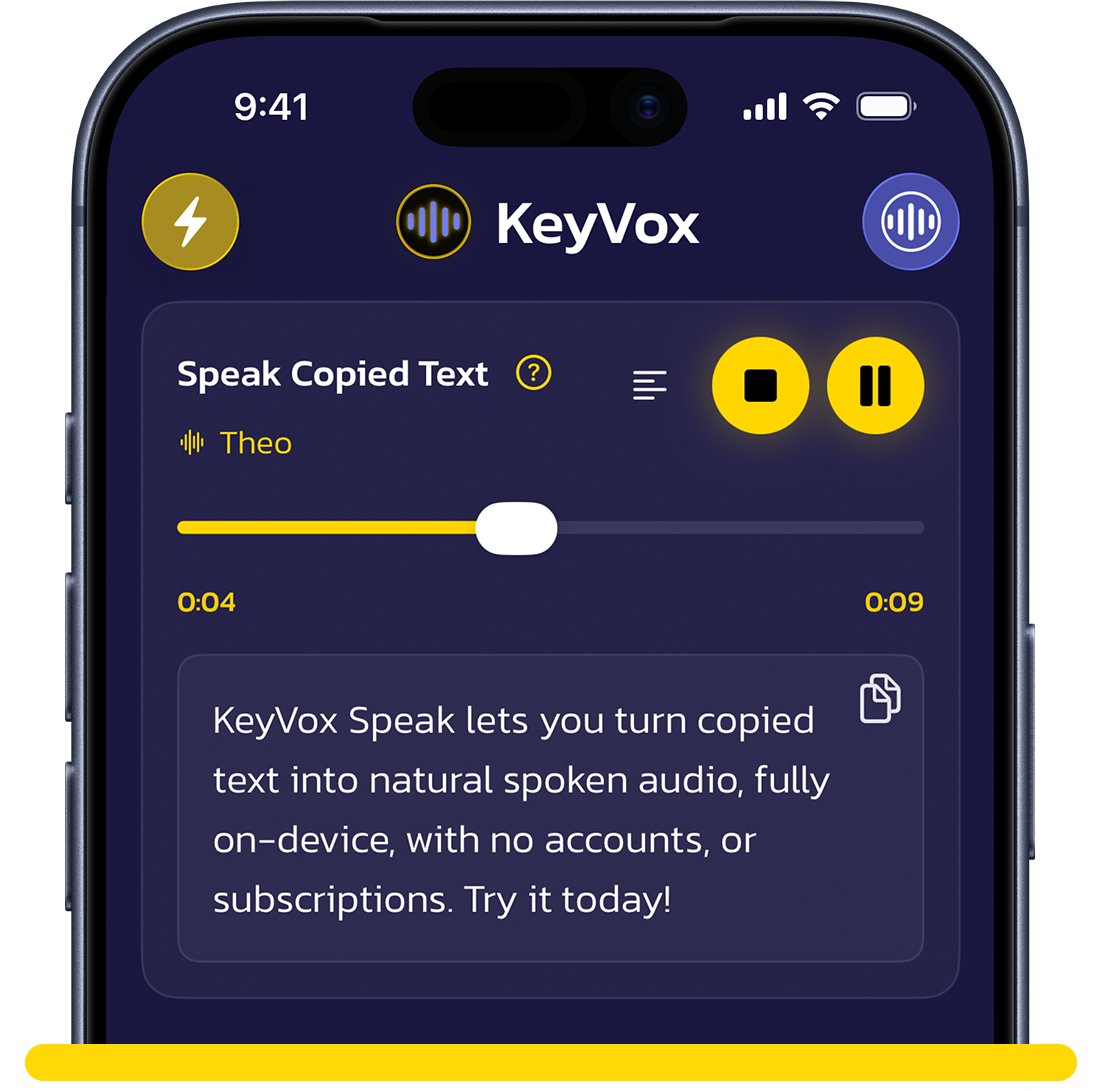
Meet the Speakers
It's Everywhere You Are
Share anything.
Hear everything.
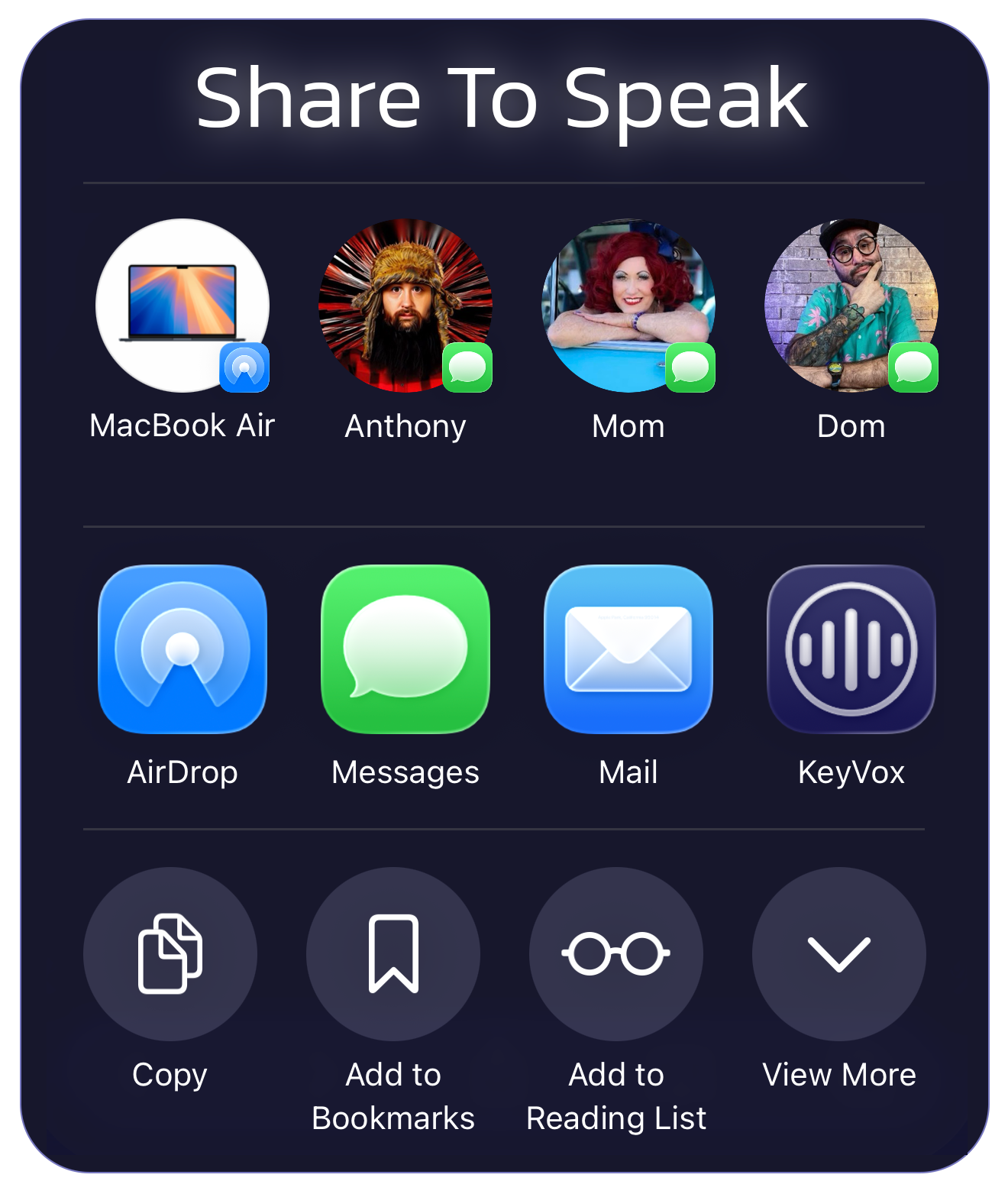
Use the iOS Share Sheet to send content directly to KeyVox. It pulls the readable text and starts the Speak flow automatically.
- PDFs
- Websites and articles
- Images with text
- Plain text and more
KeyVox Speak reads copied or shared text aloud using on-device AI voices on your iPhone. Copy text, tap Speak, and hear it in the voice you choose — all processed locally.
There are several ways:
- Home Tab — tap "Speak Copied Text"
- KeyVox Keyboard — tap the speaker button
- Share Sheet — share content from any app
- Shortcuts — map to Action Button or Control Center
The share extension supports:
- PDFs
- Websites and articles
- Images with text
- Plain text
- HTML and web archive content
Up to 8 on-device AI voices: Anne, Dean, Jordan, Jon, Parker, Sharon, Theo, and Victoria.
Theo is the featured demo voice. All voices run on-device after download.
You get 2 free Speaks per day. Replay of already-generated audio is always free.
Speak Unlimited removes the daily cap with a one-time purchase — no subscription.
Fast Mode is a toolbar toggle that starts speaking up to 50% faster. When in Fast Mode, wait for the blue check mark during playback before leaving the app. The green check mark means the audio is ready for replay.
Keep KeyVox Speak ready to load audio by extending the Speak timeout in the Settings. You can also enable Fast Mode so KeyVox can start speaking up to ~50% faster.
KeyVox Speak has a timeout for each speaking session. After the timeout the AI model is unloaded to help save battery and improve device performance. You can extend the session in Settings to keep the model awake and Speak ready to load audio quicker. An active session is indicated with a yellow wave icon next to your selected voice name on the Home tab.
If Fast Mode is enabled, KeyVox starts speaking sooner while it continues preparing the rest of the audio. For longer text, wait for the blue background-ready check mark before switching apps or locking your iPhone.
If you want the simplest behavior, turn Fast Mode off. KeyVox will take longer before it starts speaking, but it will wait until playback is ready before beginning.
Yes. Voice generation runs entirely on your iPhone after voices are installed. No text is sent to any cloud service.
English only for now. More languages may be added in future updates.
The Speak engine is about 642 MB. Individual voices are 17–19 MB each.
Wi-Fi is recommended for the initial download.
Email: [email protected]
Include your device and iOS version if you can — it helps a lot.